How to use Blockerflow
Five steps from install to a blocker you can't talk yourself out of.
Turn on the Accessibility Service
Blocking content means Blockerflow has to see what's on screen. During setup, grant the Accessibility Service permission when prompted. This runs entirely on your device; nothing you browse is ever sent anywhere.
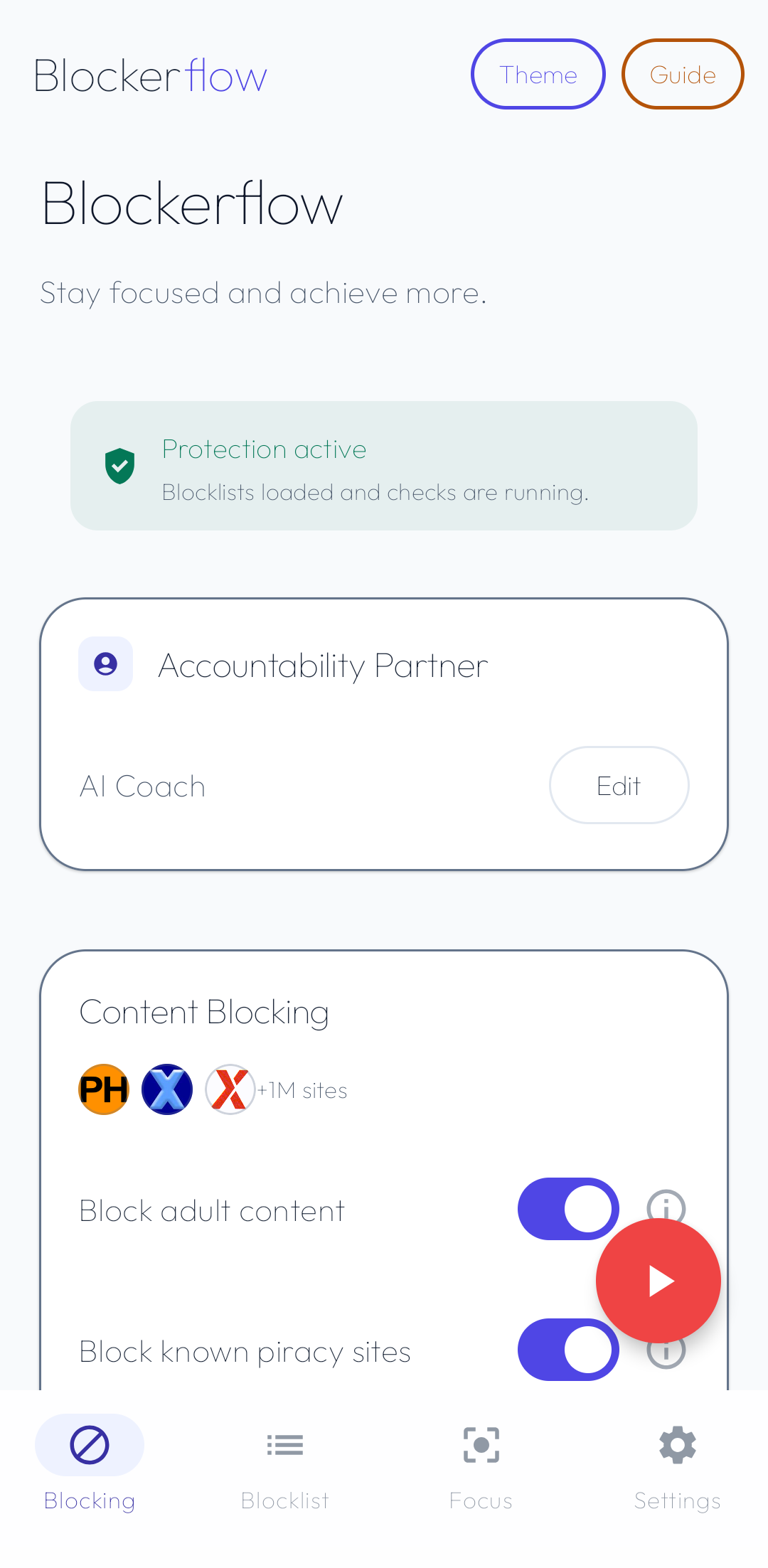
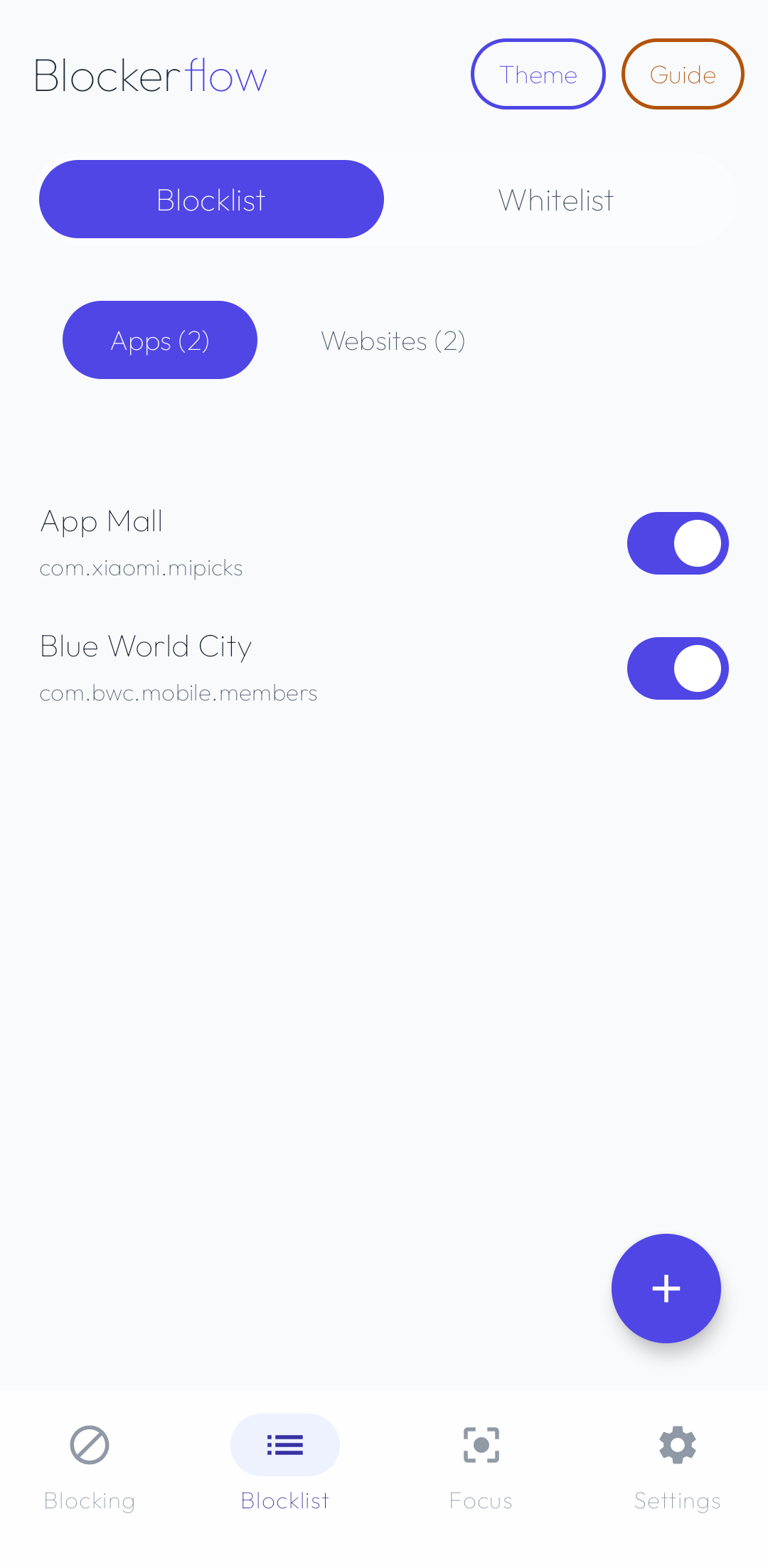
Choose what to block
Open your blocklist and pick categories: adult content, Reels, Shorts, Spotlight, or specific apps and sites. Add exceptions with the allowlist if something gets blocked by mistake.
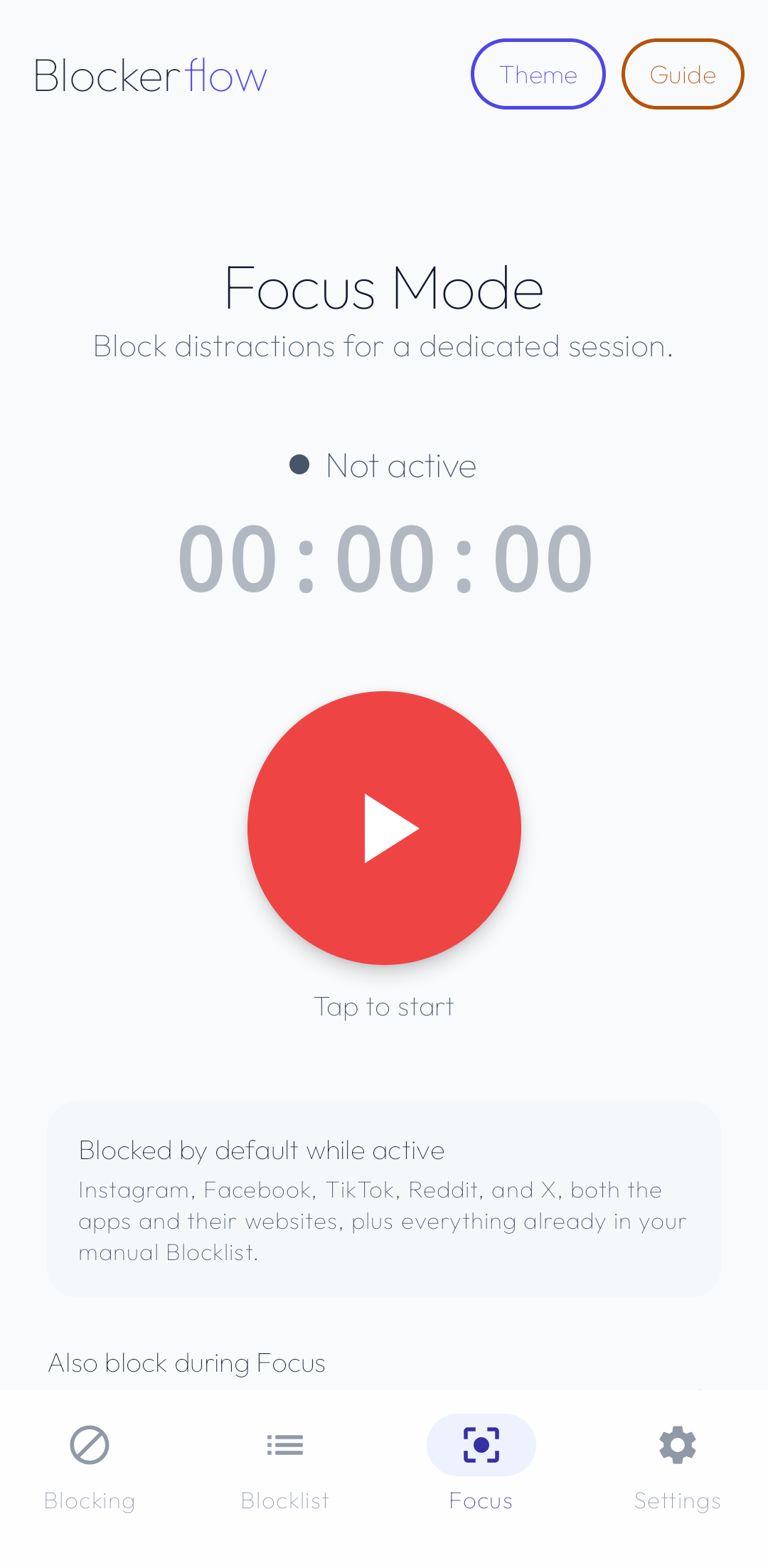
Start a Focus Mode session
Give a session a name, optionally set a time limit, and start it. Everything you've chosen to block stays blocked until the session ends, no early exits.
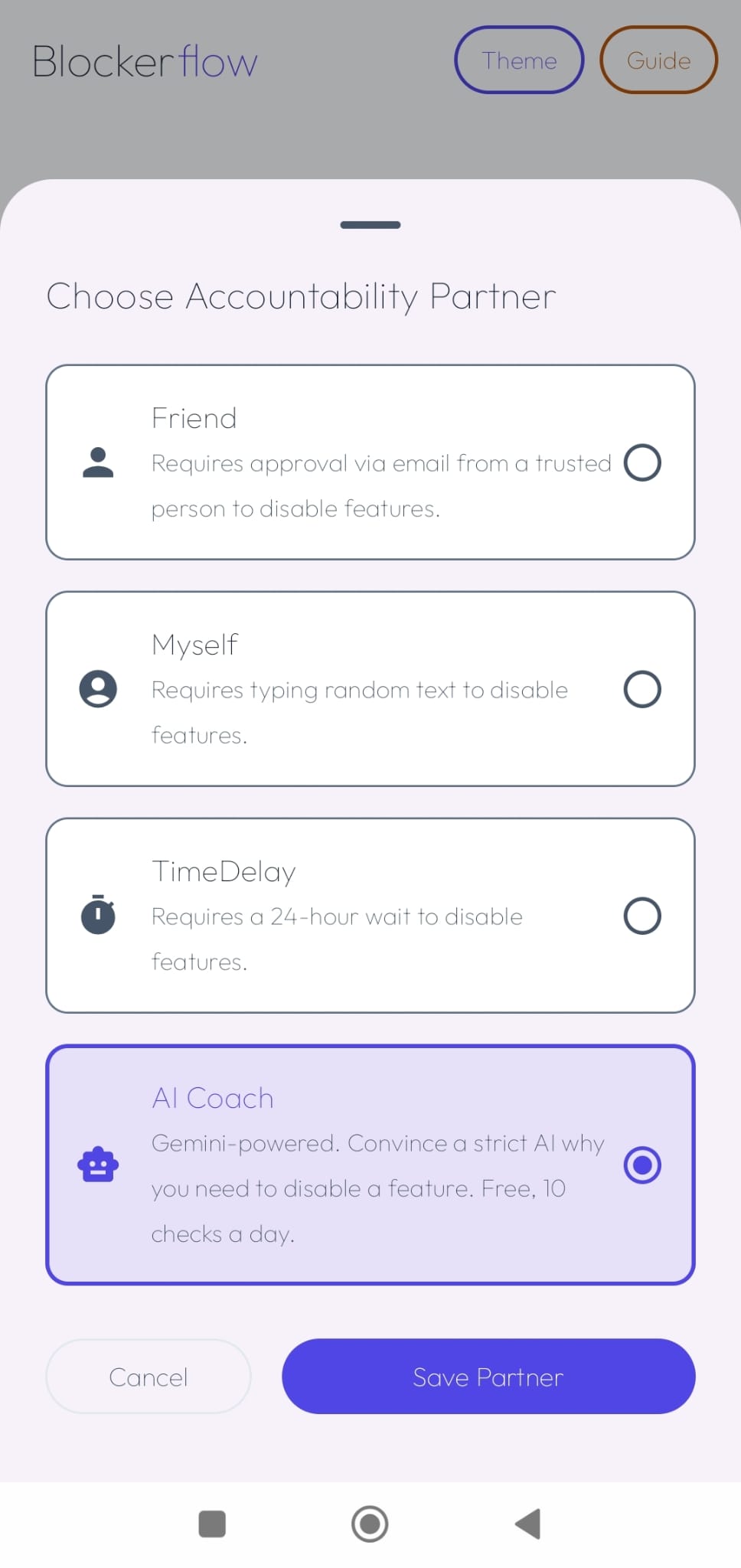
Set an Accountability Partner or AI Coach
In Settings, add a trusted contact as your Accountability Partner. They get a one-time PIN by email whenever you want to unlock something. Prefer not to involve anyone else? Switch to the AI Coach for an honest second opinion instead.
Turn on Uninstall Protection
Enable Device Admin in Settings so Blockerflow can stop itself being removed as a shortcut around its own blocks.
Still have questions?
Check what Blockerflow does and doesn't send off your device.
Read the full Privacy Policy →